IgniteIQ enables intelligent content development through integrated AI capabilities that streamline course creation and editing for your team.
Availability: AI features vary based on your subscription tier.
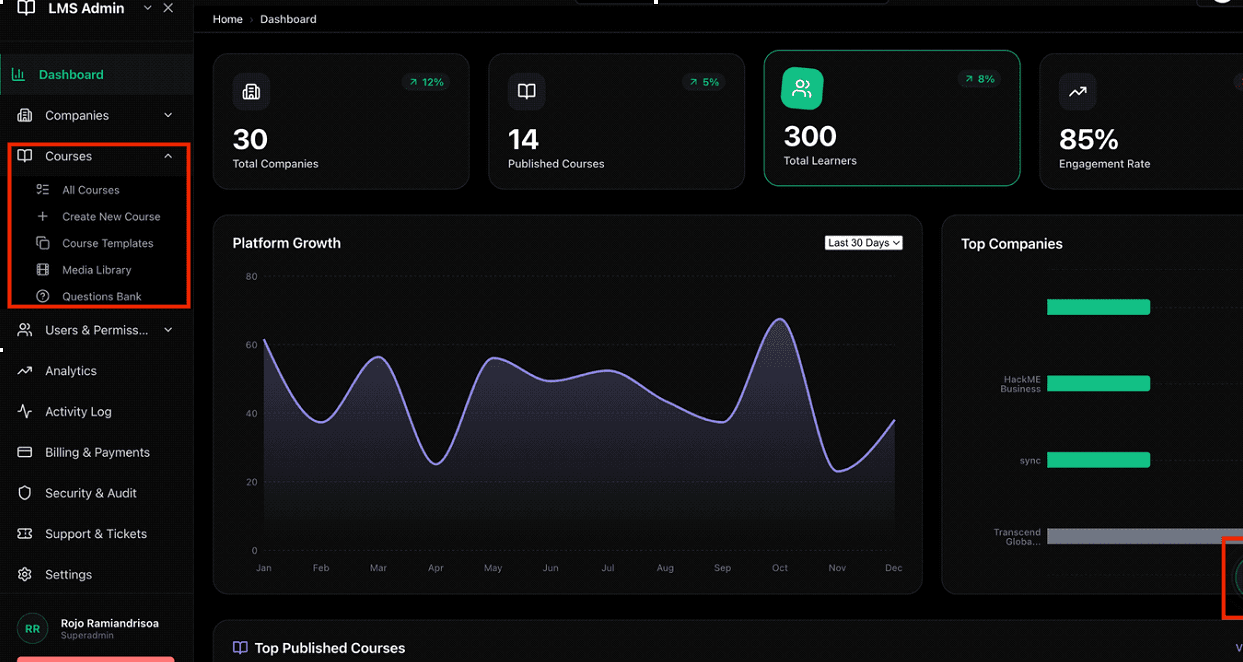
From your LMS Admin Dashboard, expand the Courses menu and click Create New Course. This opens the AI-powered Course Generator.
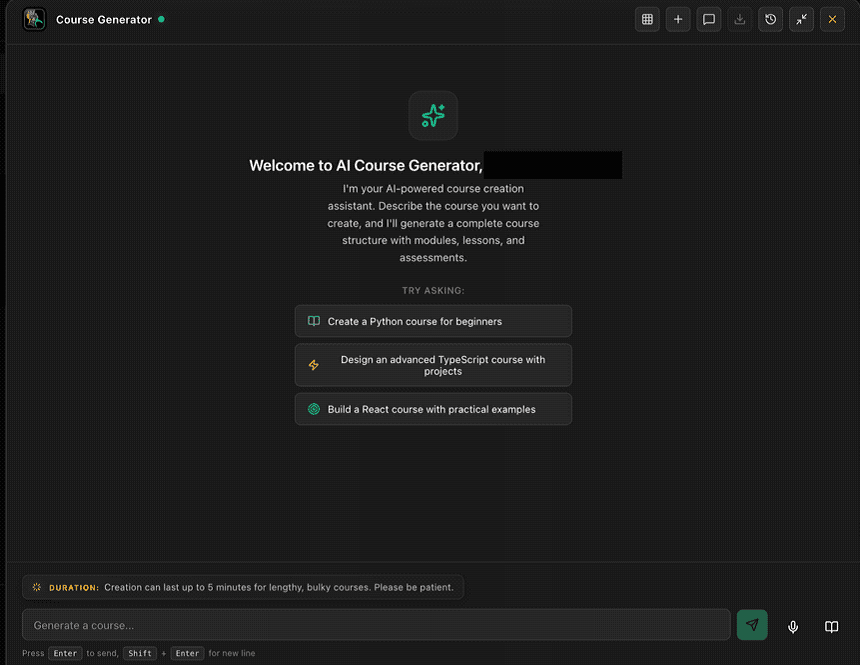
Click the AI bot button to open the Course Generator chat. You'll see suggested prompts to help you get started — or type your own.
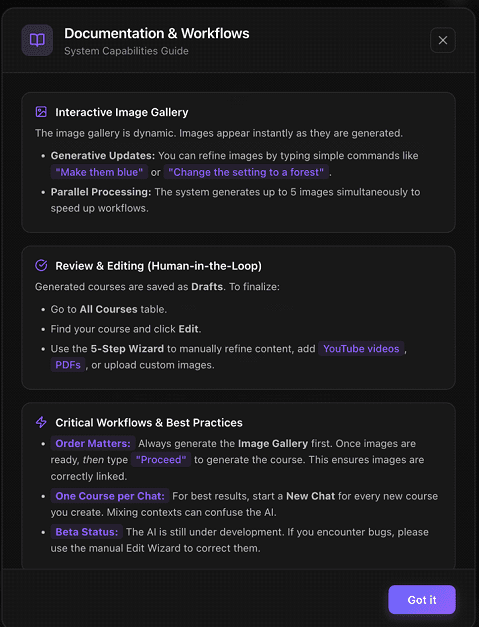
The Documentation & Workflows guide explains how the interactive image gallery, human-in-the-loop review, and critical best practices work.
Describe the course you want to create. For example: "Can you generate a course of the basics of Cyber Security? Make it a beginner for those who have no experience with cyber security."
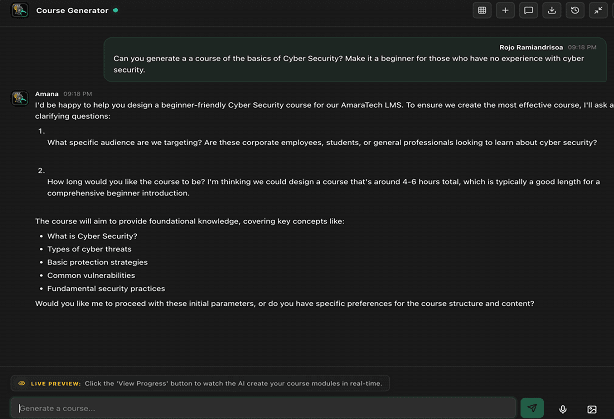
Answer the AI's follow-up questions to provide additional context and details. The more information you provide, the better your course content will be.
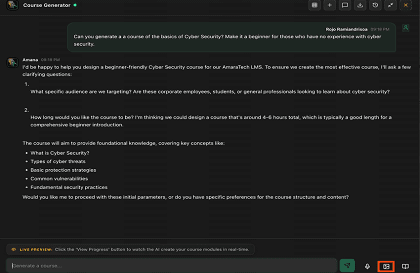
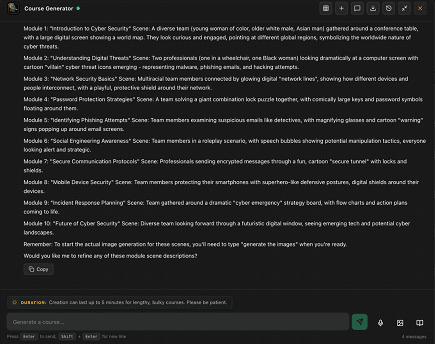
The AI Bot will automatically create image descriptions and narratives for each module. Once complete, simply type "generate the images" to create the visuals for your course.
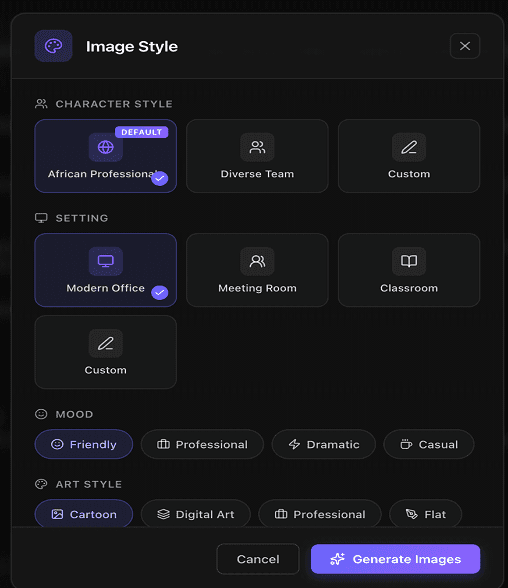
Choose character style, setting, mood, and art style for your course visuals. After selection, the bot will proceed to generate the images automatically.
The AI creates custom visuals for every module. Images appear in real-time as they are generated. You can refine them by typing simple commands.
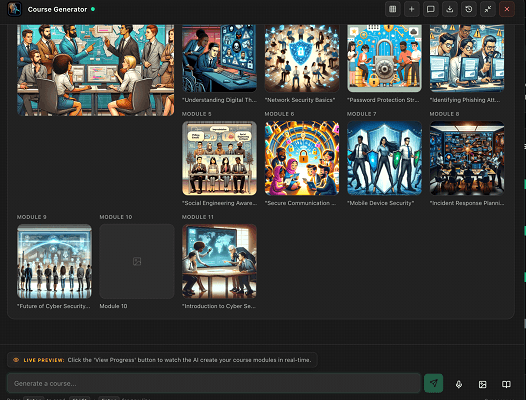
Happy with your course setup? Type "proceed" and let the AI do the heavy lifting. Your complete course will be generated and waiting for you as a draft in your Course Dashboard.
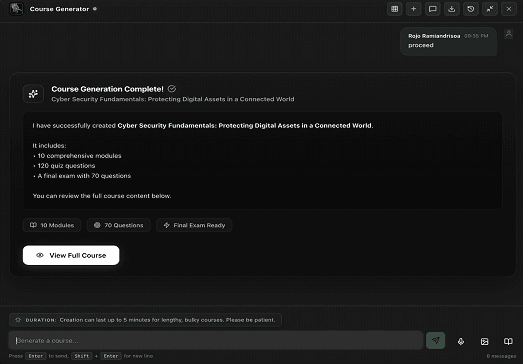
Review your AI-generated course draft and make any necessary edits by selecting the Pencil icon. When you're satisfied with the content, click Publish to make it live for learners.

IgniteIQ AI features utilize third-party Large Language Models (LLMs) for content generation. Your lesson content and user inputs are processed temporarily to deliver AI capabilities, but are never used for model training. All data is automatically deleted immediately after processing in accordance with our strict zero-retention policy.